
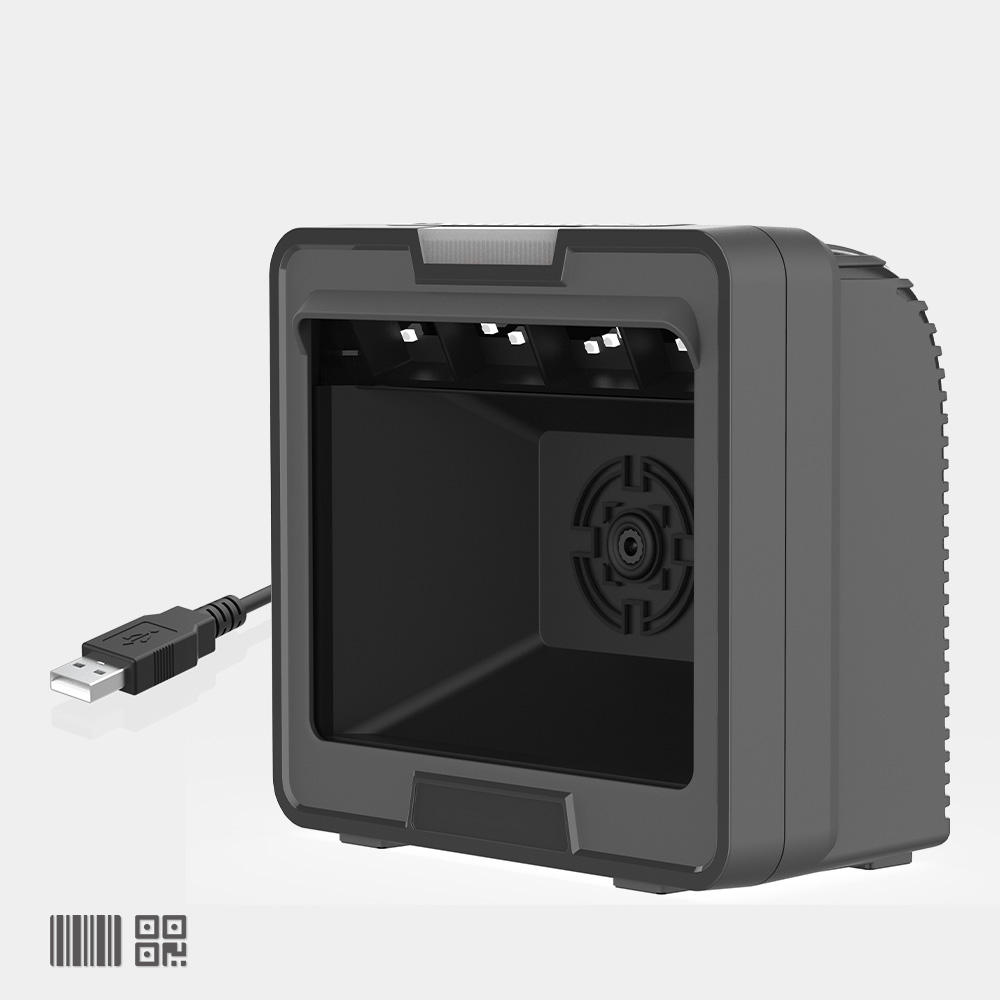
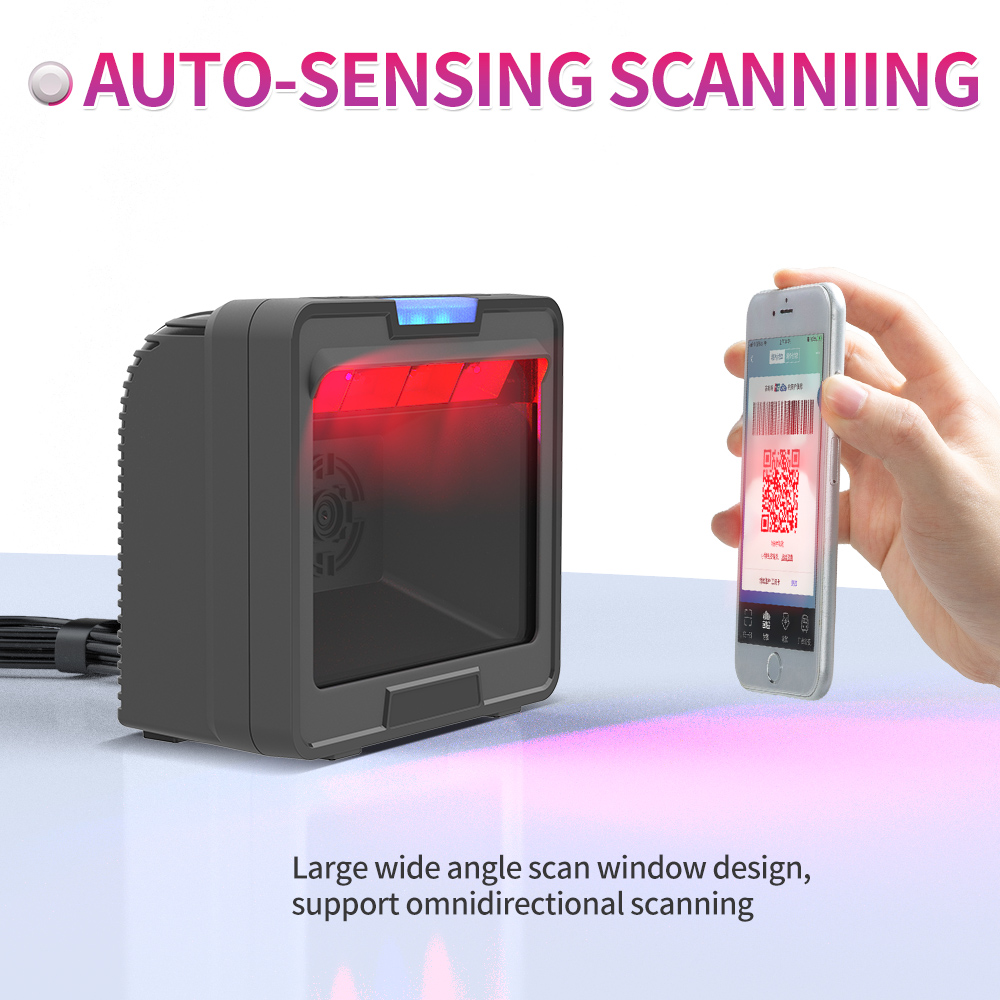
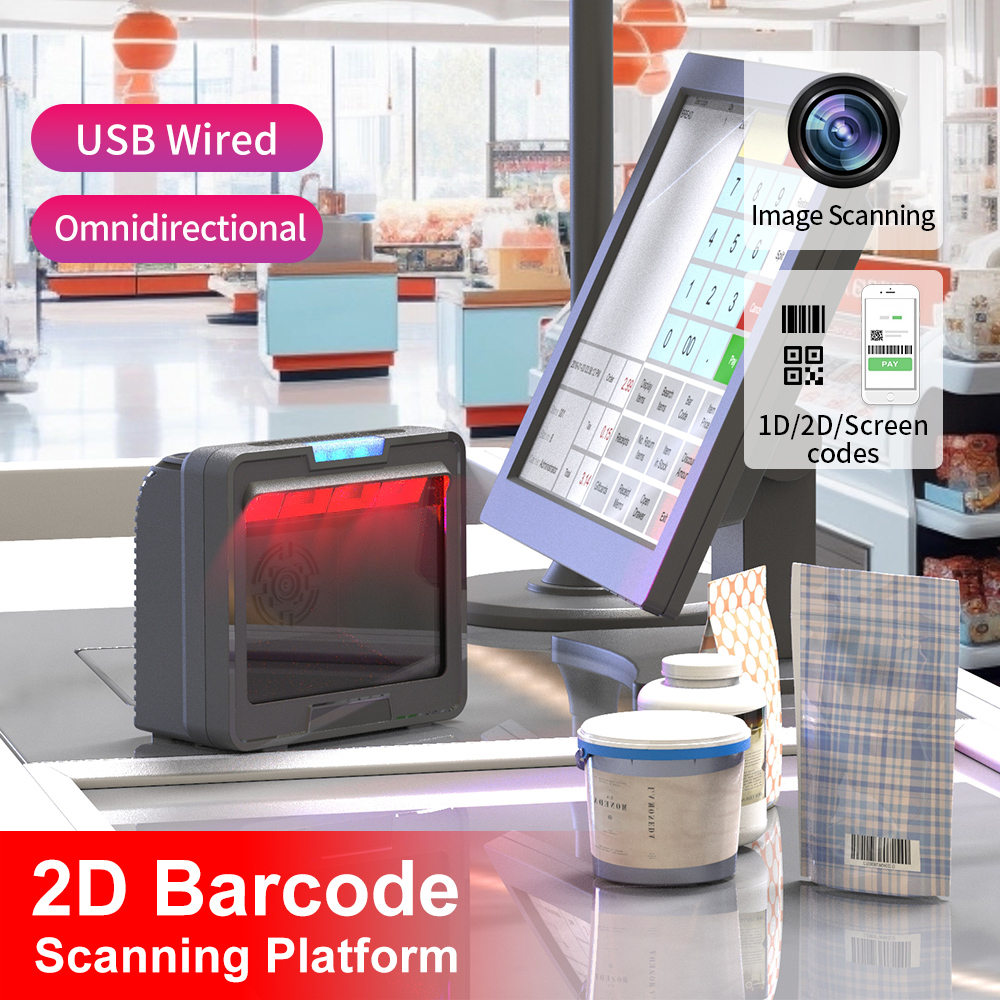
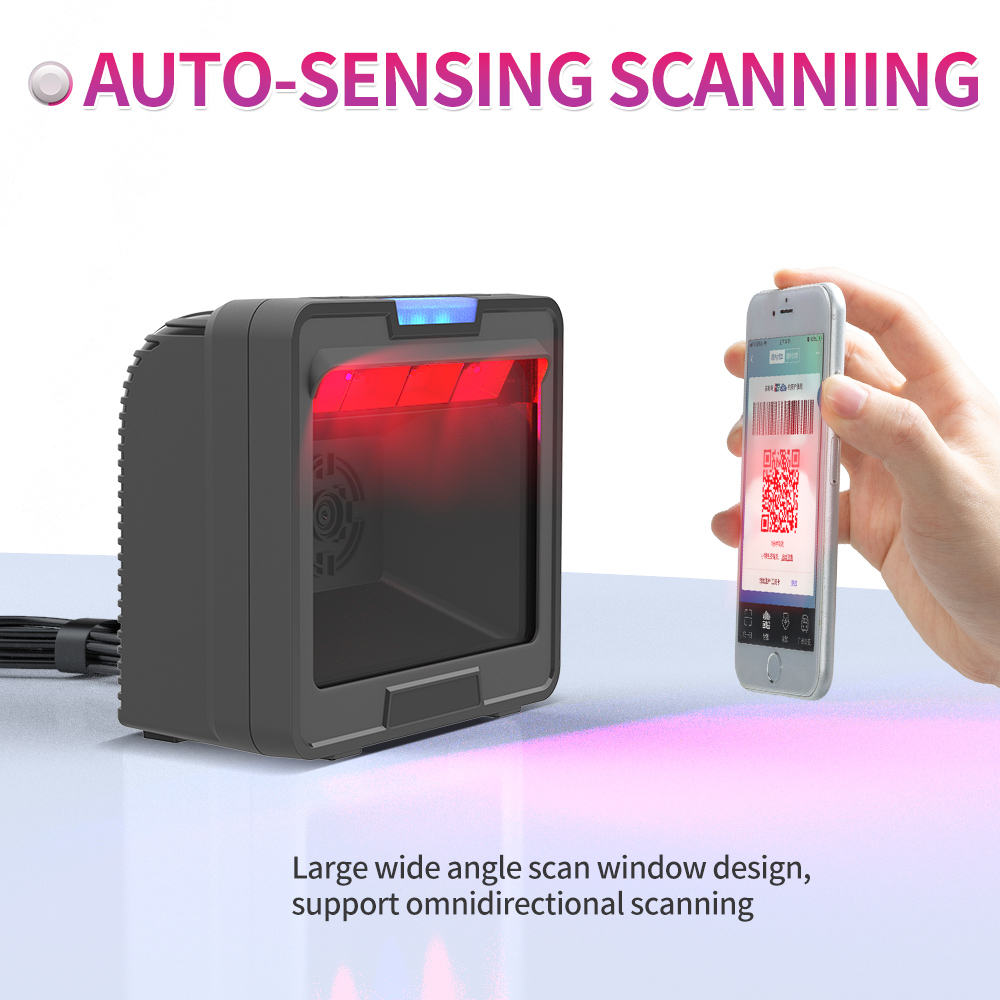
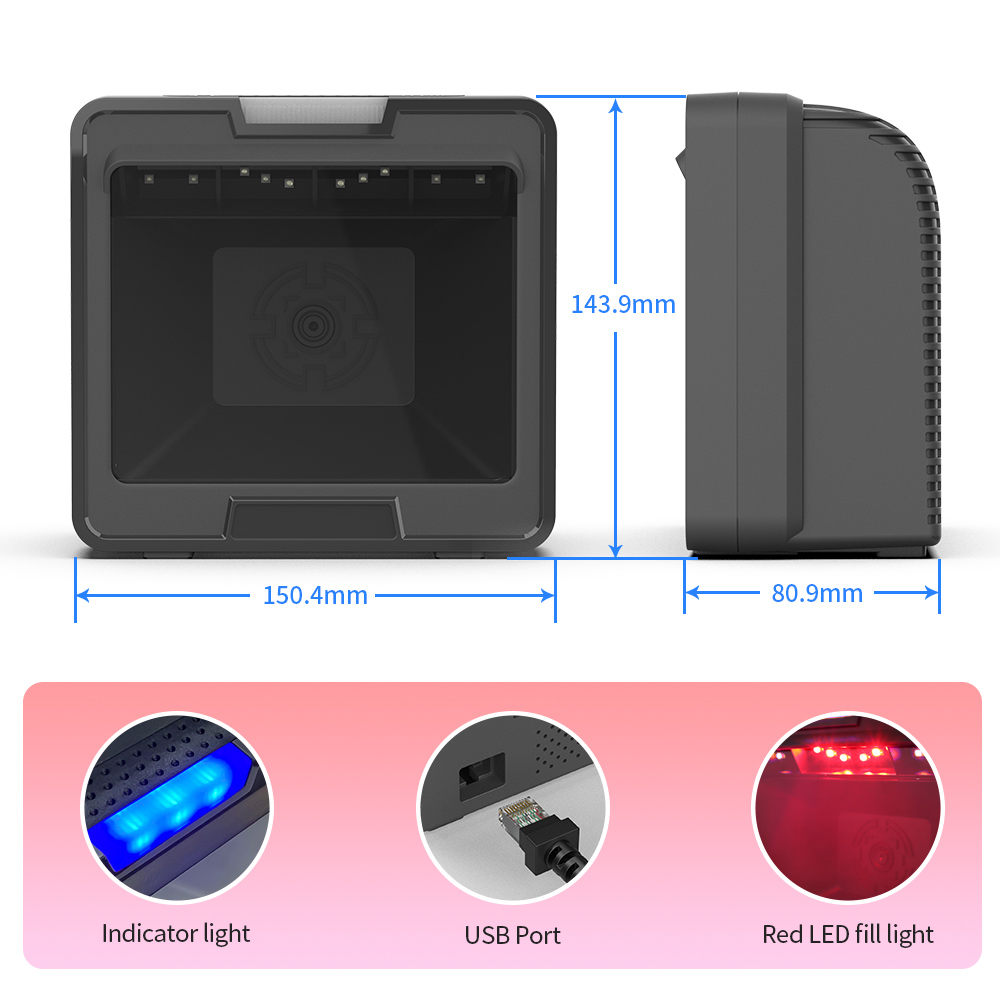
• Super wide-angle window, long-distance reading. Quickly read all kinds of
1D/2D codes and support scanning by mobile payment devices
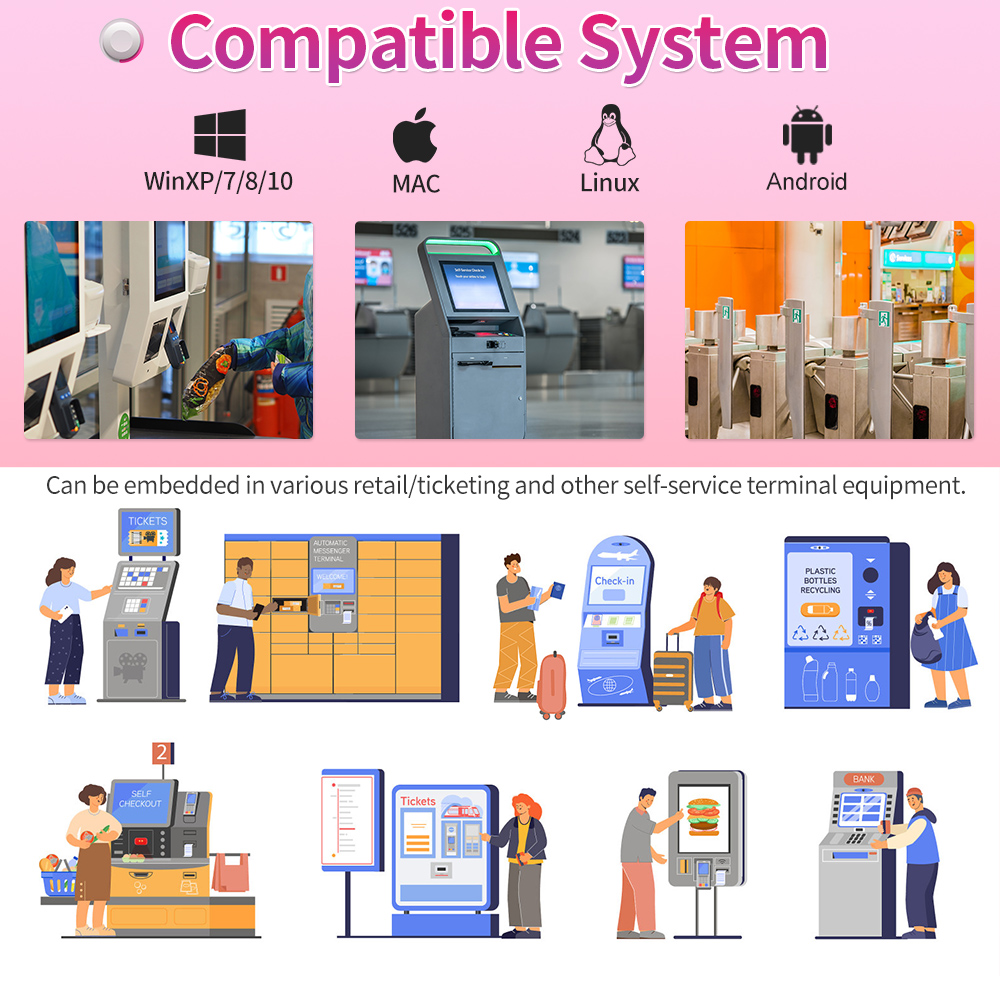
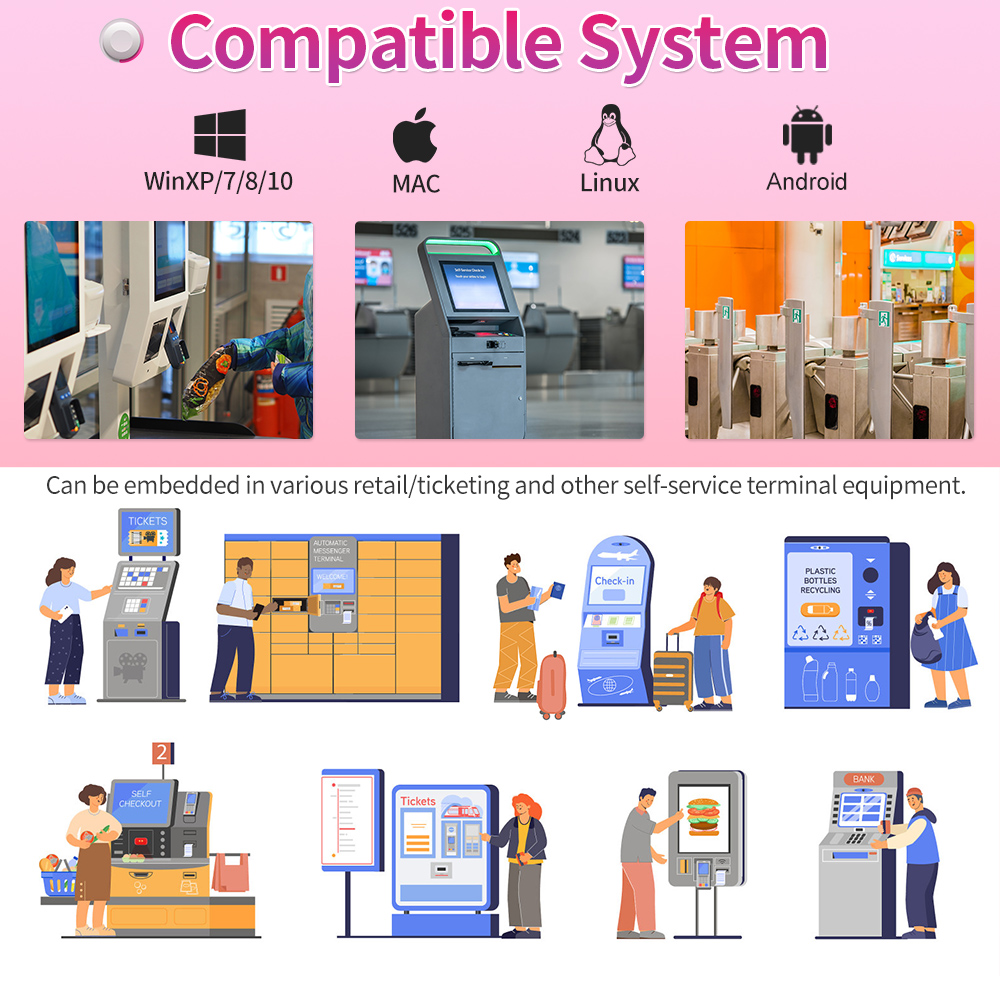
• Can be embedded in various retail/ticketing and other self-service terminal
equipment
| GT-9800H Technical Specifications | |||||||
| Model | GT-9800H | ||||||
| Product Name | Large-format 2D Red-light Presentation Scanner | ||||||
| Physical Specifications | |||||||
| Material | ABS + PC | ||||||
| Power Supply | DC 5V 2A | ||||||
| Power Consumption | 1.00W(operating);0.73W(standby);1.50W(peak) | ||||||
| Operating Current | 200mA(operating);145mA(standby);283mA(peak) | ||||||
| Weight | 265.0g±5g(excluding cable) | ||||||
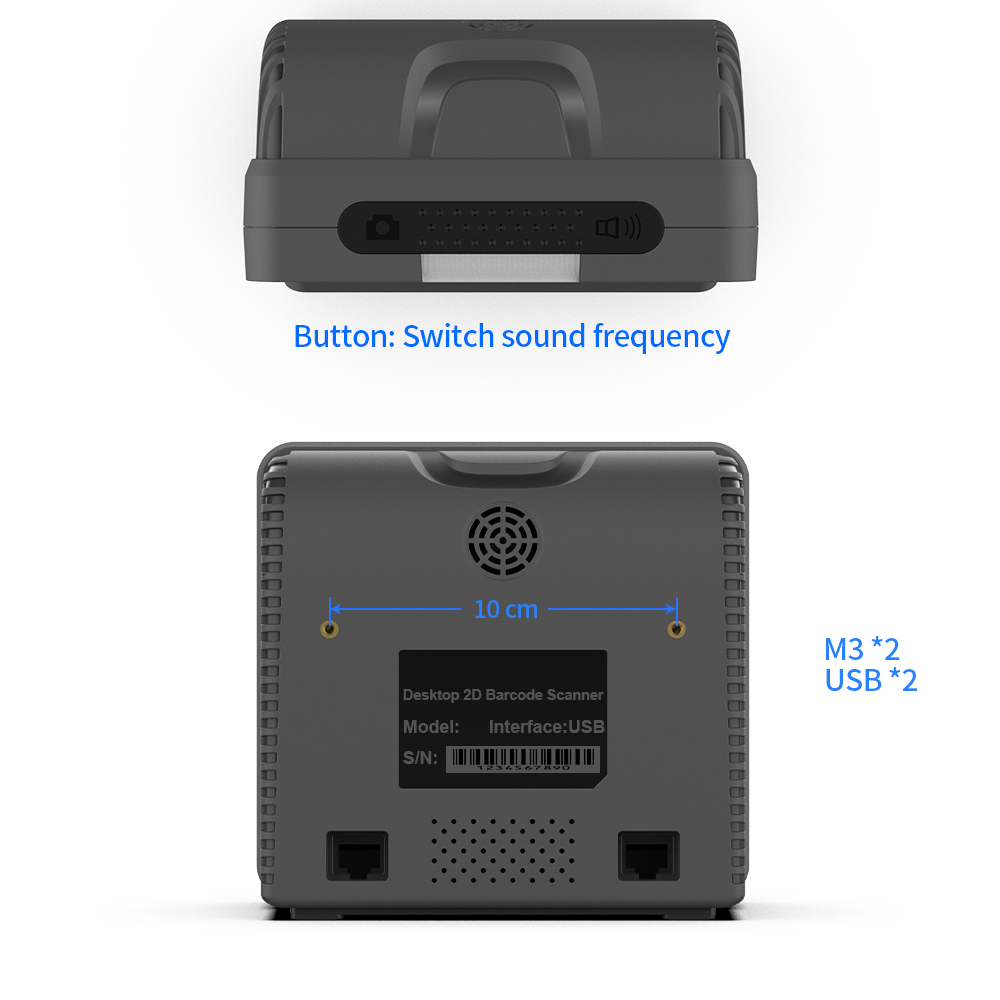
| Dimensions | L × W × H:150.4*143.9*81.4mm | ||||||
| Color | Dark Gray | ||||||
| Performance Specifications | |||||||
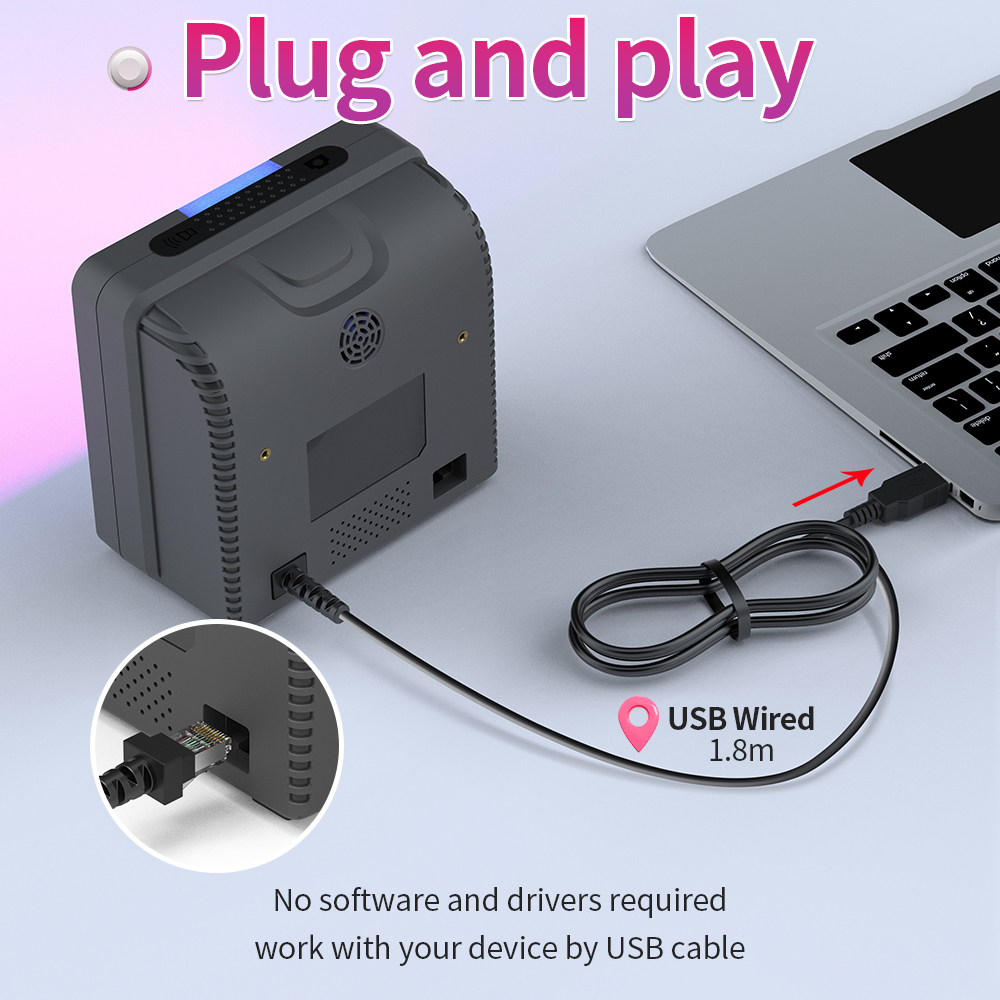
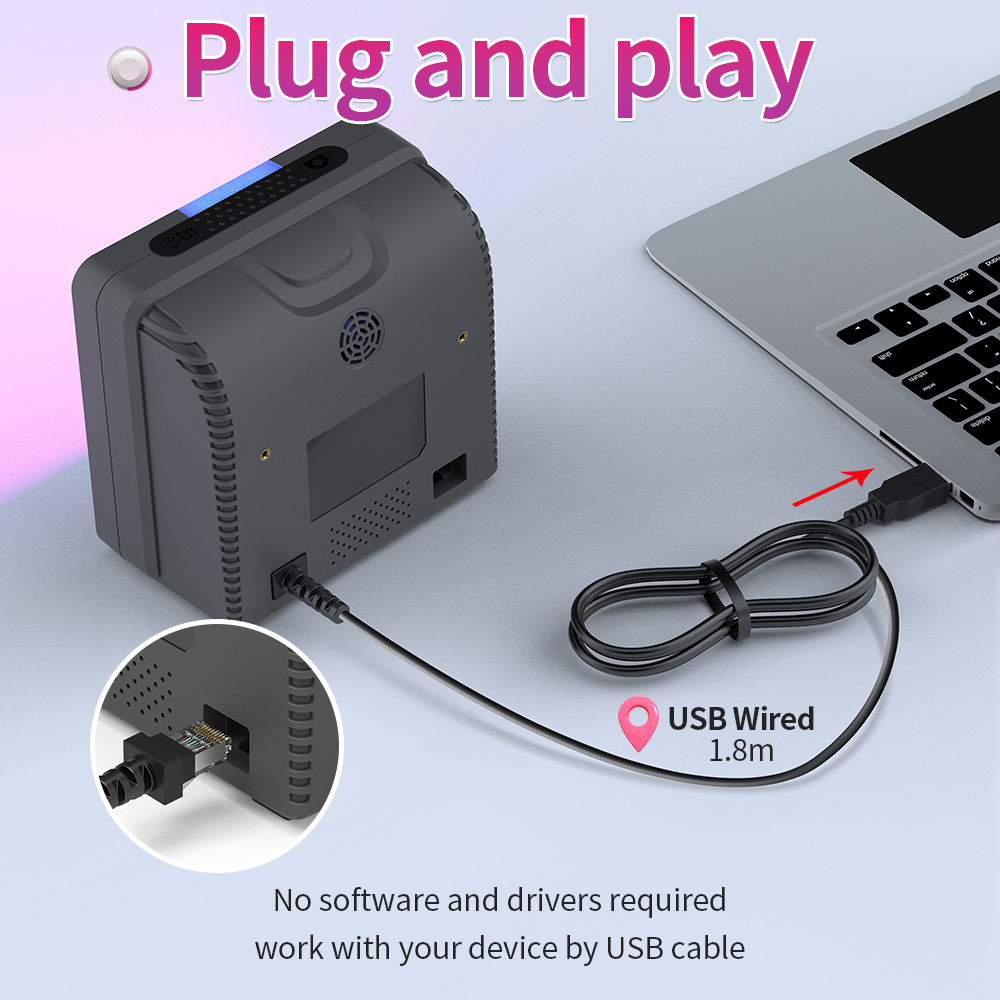
| Interface | USB;(customizable RS-232 port) | ||||||
| Supported Operating Systems | Linux,Android,Windows XP, 7, 8, 10,MAC | ||||||
| Supported Keyboard Languages | United States/China(US English);Czech;French;German;Hungarian;Italian;Japanese;Spanish;TurkeyQ;TurkeyF;Portuguese;;English;Dutch;Finnish;Danish;Polish;Swedish;Southern Sami;Slovak;Romanian;Hebrew;Latin American Spanish;Russian;Greek;Thai; [Supports virtual keyboard] | ||||||
| Sensor | CMOS global shutter 640×480 | ||||||
| Light Source | Red LED | ||||||
| Processor | 32-bit ARM MCU | ||||||
| Motion Tolerance | Code39: 1.35m/sec QR: 1.63m/sec | ||||||
| Resolution | ≥4mil | ||||||
| Bit Error Rate | 1/5,000,000 | ||||||
| Scanning Method | Image | ||||||
| Trigger Mode | Sensing Mode | ||||||
| Feedback | Buzzer+indicator light(LED) | ||||||
| Mirrored Barcodes | Supported | ||||||
| Invoice Barcode Support | Supported | ||||||
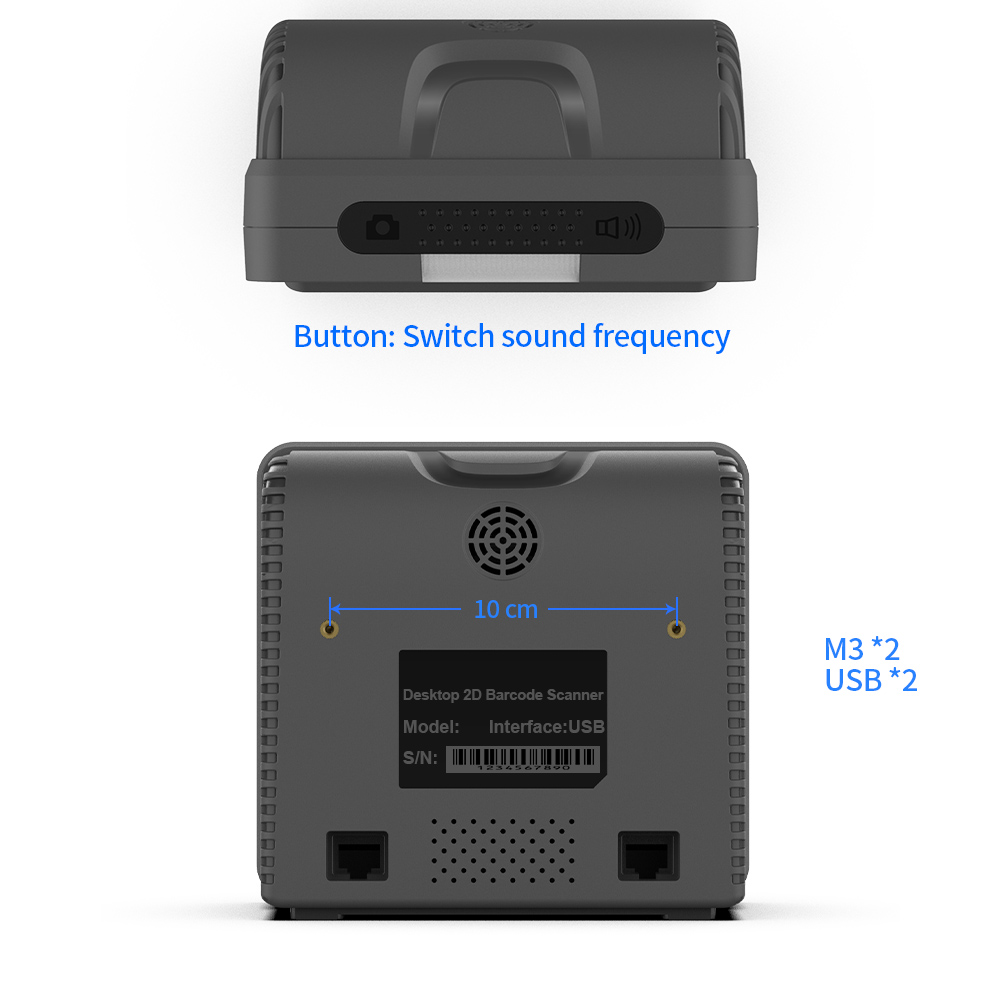
| Button | Switchable Beep Frequency | ||||||
| Print Contrast | ≥30% | ||||||
| Field of View | Roll360°,Horizontal72°,Vertical72° | ||||||
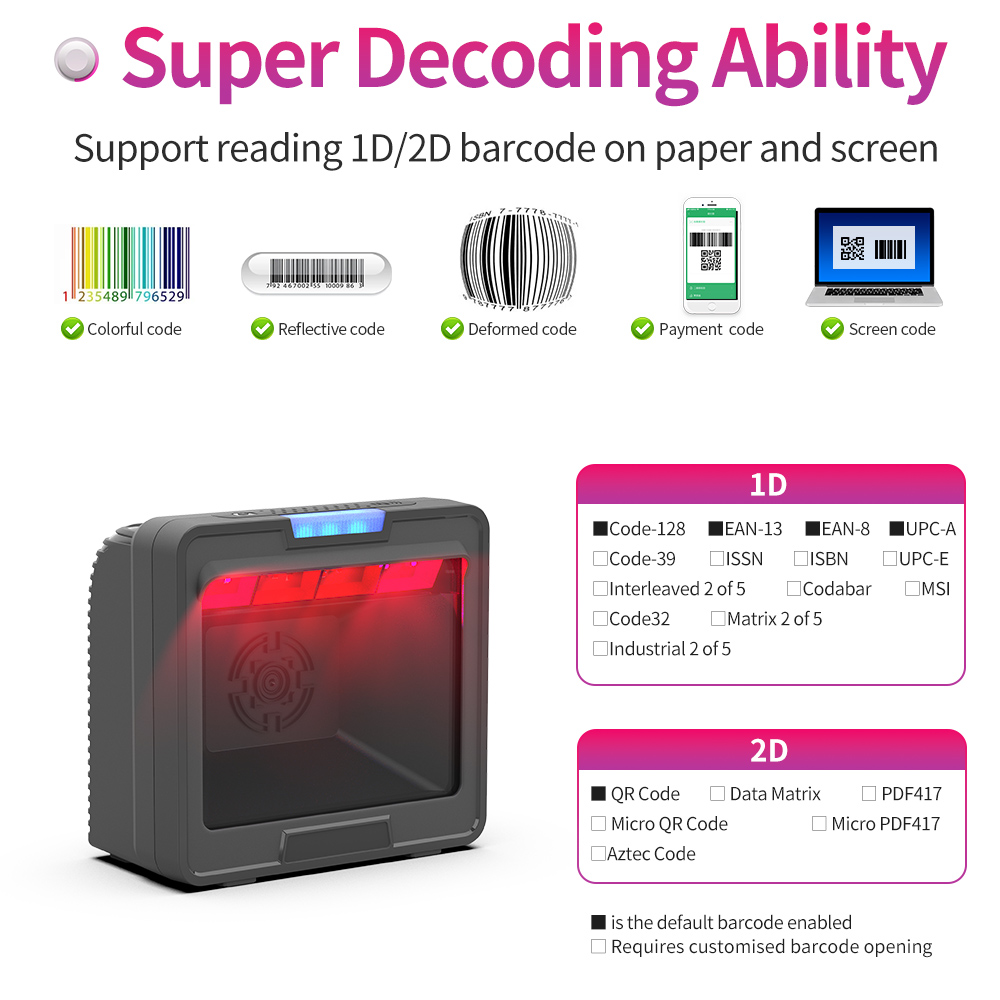
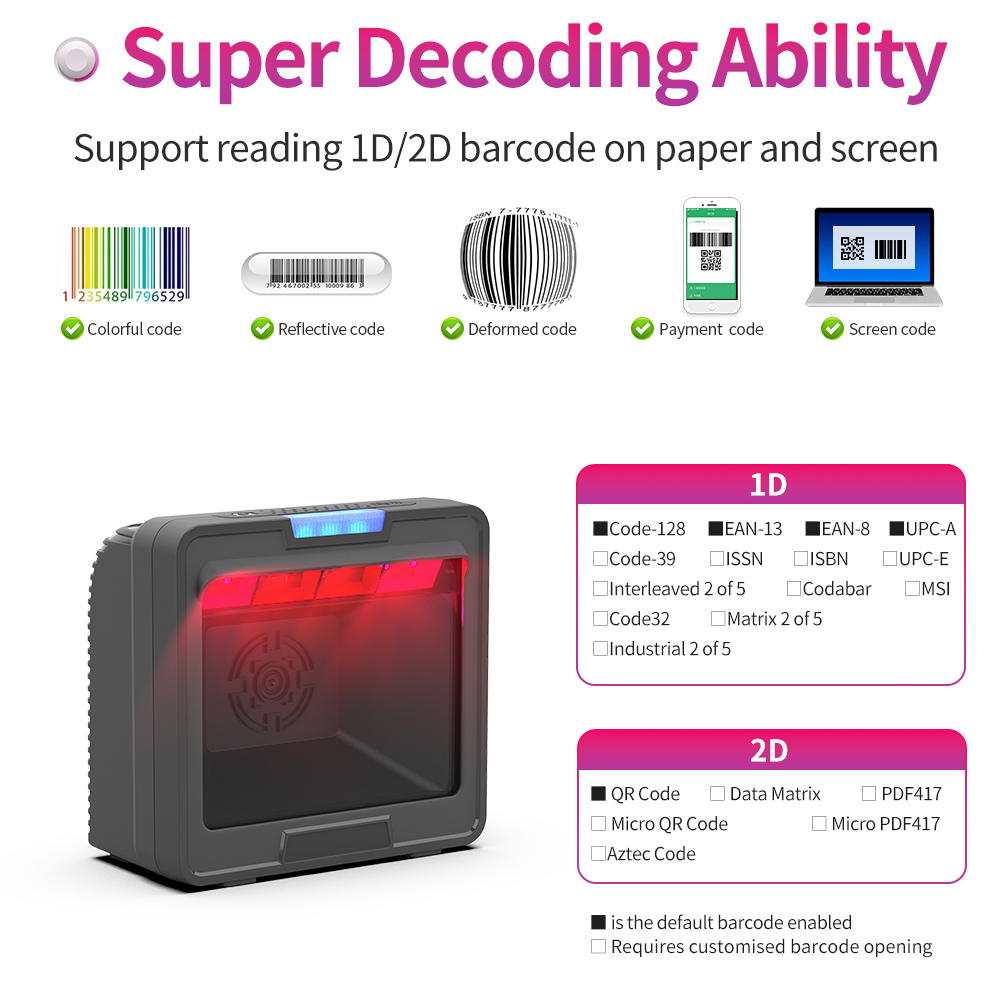
| Supported Symbologies | 1D | ■Code-128 ■EAN-13 ■EAN-8 ■UPC-A □Code-39 □Code-93 □ISSN □ISBN □UPC-E □Codabar □MSI □Code32 □Matrix 2 of 5 □Industrial 2 of 5 □Interleaved 2 of 5 | |||||
| 2D | ■QR Code ■Data Matrix ■PDF417 □Micro QR Code □Micro PDF417 □Aztec Code | ||||||
| Depth of Field | 5mil Code39: 3cm -- 10cm 13mil EAN13 : 3cm -- 22cm 20mil QR Code : 2cm -- 11cm Alipay payment code : 2cm -- 50cm + WeChat Pay code : 2cm -- 50cm + | ||||||
| Environmental Specifications | |||||||
| IP Rating | IP42 | ||||||
| Operating Temperature | 0 to 50℃ / 32 to 122℉ | ||||||
| Storage Temperature | 0 to 50℃ / 32 to 122℉ | ||||||
| Operating Humidity | 20% to 85% (non-condensing) | ||||||
| Storage Humidity | 20% to 85% (non-condensing) | ||||||
| ESD Protection | 15 kV air discharge | ||||||
| Drop Resistance | free fall1.5m(onto concrete) | ||||||
| Note: Specifications are subject to change without notice. | |||||||
| Prepared by: Yang Wulue Reviewed by: Approved by: | |||||||
| Solutions FAQ | |||||||||
| Q:Can not turn on or turn off immediately after turning on | |||||||||
| A:This situation is mostly caused by insufficient battery power, please charge in time to ensure sufficient power (the red light is on when charging, and the red light is off when fully charged) | |||||||||
| Q:Barcode data is not uploaded | |||||||||
| A:The scanner and receiver are not successfully matched, please match the machine according to the instructions; maybe the distance between the scanner and the receiver is far, please set it to inventory mode in advance (the barcode will be automatically uploaded within the acceptance range) | |||||||||
| Q:There is a laser line, but can't read the bar code. | |||||||||
| A:Maybe the barcode system is not turned on, follow the instructions to open it; try other barcodes to confirm whether the barcode has been damaged; it is also possible that the scanning angle is irregular,please adjust it according to the manual. | |||||||||
| Q:The scanned data is displayed incorrectly on the host | |||||||||
| A:Maybe the input method is wrong, please convert the input method to standard English or you can reset the barcode scanner, or contact the manufacturer's service center. | |||||||||
| Q:Other cases cannot be decoded | |||||||||
| A:It may be an error in the switching device, turn off the power of the device and connect the device and the scanner correctly, then turn on the power of the device, reset the scanner to the factory default state and scan the barcode again. |
Please select your service type and leave your information so that we can provide the appropriate service. Xincode looks forward to working with you.




1ST FIRST FLOOR, NO.146, SANSHUI AVENUE, YUNDONGHAI STREET, SANSHUI DIST., FOSHAN CITY, GUANGDONG PRO, CHINA.
+86-18998310186(Andy Wu)

